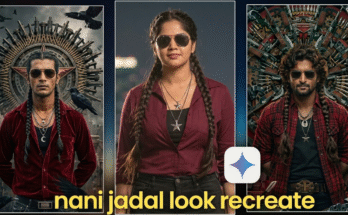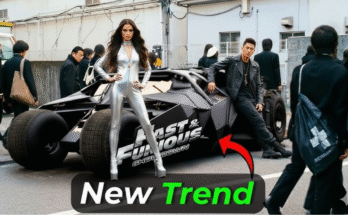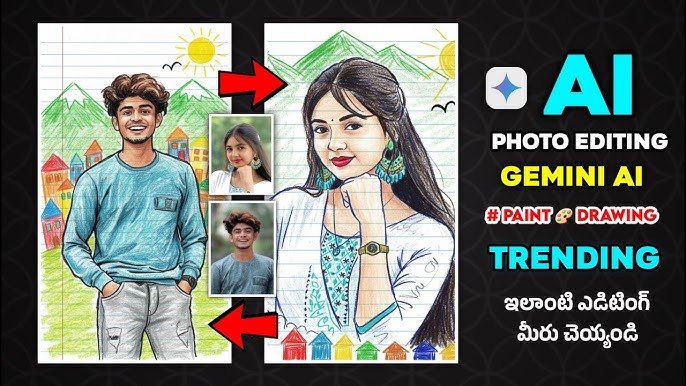
Artificial intelligence has completely transformed the world of digital art. Whether you’re a designer, a content creator, a student, or simply someone who enjoys experimenting with creative tools, AI drawing photos have become one of the most innovative and fun ways to express ideas visually. These AI-generated artworks can turn ordinary photographs into breathtaking sketches, stylized drawings, portraits, illustrations, cartoons, or even hyper-realistic paintings.
But what exactly are AI drawing photos? How do you create them? Which tools work best? What techniques give the highest-quality results?
This comprehensive guide answers all of these questions—and more. Below, you’ll learn how to create AI drawing photos step-by-step, discover the top tools, master advanced prompting, and find expert tips to make your AI creations truly stand out.
What Are AI Drawing Photos?
AI drawing photos are images that have been transformed or generated using artificial intelligence to look like a drawing, sketch, illustration, cartoon, or painting. Unlike traditional editing, AI uses machine learning and neural networks to mimic artistic styles, analyze visual patterns, and generate artwork that looks hand-drawn.
For example:
-
A normal portrait can become a pencil sketch.
-
A selfie can turn into an anime-style drawing.
-
A landscape photo can be converted into a watercolor painting.
-
A simple prompt like “a dragon sitting on a cloud drinking tea” can produce a professional-quality illustration.
AI drawing technology eliminates the need for technical drawing skills while producing results that even professional artists admire.
Why Are AI Drawing Photos So Popular?
There are several reasons AI-generated art is taking over social media, digital marketing, and even professional design studios:
1. Beginner-Friendly
You don’t need artistic talent or training. AI does the heavy lifting.
2. Fast and Efficient
What may take a human hours or days can be created by AI in seconds.
3. Limitless Creativity
You can combine ideas, styles, and themes that would be nearly impossible to draw manually.
4. High-Quality Results
AI models like Midjourney, DALL·E, and Stable Diffusion produce artwork that rivals professional illustrations.
5. Affordable
Many tools offer free versions or low-cost subscriptions compared to hiring designers.
6. Perfect for Content Creation
AI drawings are widely used for:
-
Blog graphics
-
YouTube thumbnails
-
Business branding
-
Social media posts
-
Posters and ads
-
Digital collectibles
AI drawing photos are the perfect blend of speed, quality, and creativity.
How to Create AI Drawing Photos (Step-by-Step Guide)
Now let’s get into the actual process of creating AI-generated drawings.
There are two main ways:
Method 1: Upload a Photo and Convert It Into a Drawing
Method 2: Generate an AI Drawing From Scratch Using Text Prompts
We’ll cover both.
Method 1: Turn a Real Photo Into an AI Drawing
If you want to convert a photo into a sketch, illustration, or painting, follow these steps:
Step 1: Choose the Right Tool
Some of the best tools for photo-to-drawing conversion include:
-
Fotor AI Sketch Converter
-
PicsArt AI Art Generator
-
Prisma Photo Editor
-
Adobe Express AI Effects
-
Painnt – Art & Painting Filter
-
DeepArt
-
VanceAI
These platforms offer multiple drawing styles including pencil sketch, ink drawing, cartoon style, watercolor, oil painting, anime, and more.
Step 2: Upload Your Photo
Good photos give better AI results.
For the best output, choose a picture that has:
-
Clear lighting
-
Sharp details
-
Minimal background clutter
-
A subject slightly centered
Portraits, full-body photos, pets, and landscapes work extremely well.
Step 3: Choose a Drawing Style
Most tools offer dozens of artistic styles like:
-
Pencil sketch
-
Charcoal drawing
-
Line art
-
Watercolor
-
Anime character
-
Comic book art
-
Colored pencil
-
Oil painting
-
Digital illustration
Choose the one that matches your creative goal.
Step 4: Adjust and Customize
AI art platforms often allow fine-tuning:
-
Smoothness
-
Line thickness
-
Color intensity
-
Texture
-
Background removal or blur
-
Contrast and shadows
These settings help achieve a more realistic and polished drawing effect.
Step 5: Download and Save the Final Artwork
Once satisfied, export in the resolution you need.
For professional use, choose:
-
PNG (best for transparency)
-
JPEG (best for social media)
-
4K or high-resolution options for printing
That’s it—you’ve successfully transformed a regular photo into a stunning AI drawing.
Method 2: Generate AI Drawing Photos Using Text Prompts
This method is extremely powerful because you don’t even need a real photo.
You simply type a description and AI creates a drawing-style image from scratch.
Step 1: Choose an AI Image Generator
Here are the best AI tools for drawing-style creation:
-
Midjourney (best for detailed illustrations)
-
DALL·E (best for clean, controlled art styles)
-
Stable Diffusion (best for customization)
-
Leonardo AI (best for stylized characters)
-
Bing Image Creator (free & accessible)
-
Canva AI Art Generator
Each tool has different strengths, but all can produce excellent AI drawing photos.
Step 2: Write a Strong Prompt
Prompts are the instructions you give the AI.
A good prompt includes:
-
Subject
-
Style
-
Medium
-
Details
-
Mood
-
Lighting
-
Angle
-
Color tone
Example Prompt for a Pencil Sketch:
“A hand-drawn pencil sketch of a young woman reading a book under a tree, soft shading, detailed line art, realistic texture, minimalist background.”
Example Prompt for a Cute Anime Drawing:
“Kawaii anime-style girl with big sparkling eyes, pastel colors, smooth shading, wearing a pink hoodie, dreamy soft background.”
Example Prompt for a Watercolor Painting:
“Watercolor-style illustration of a mountain landscape at sunrise, soft brush strokes, vibrant warm colors, artistic texture.”
The more detailed your prompt, the better the result.
Step 3: Select the Art Style
Most tools allow you to choose:
-
Sketch
-
Digital drawing
-
Ink art
-
Cartoon
-
Oil painting
-
Anime
-
Comics
-
Chalk art
-
Pixel art
Pick the one that fits your creative vision.
Step 4: Generate, Edit, and Improve
AI usually produces 4–6 variations.
Look for:
-
Best composition
-
Clean lines
-
Proper facial features
-
Correct anatomy
-
Good shading
If needed, you can regenerate or upscale.
Step 5: Save the Final AI Drawing
Download the artwork and share it on social media, use it in a design project, or print it as wall art.
Best AI Tools for Creating Drawing Photos (Updated for 2025)
Let’s explore the most powerful tools today.
1. Midjourney
Midjourney is widely considered the best AI generator for high-quality illustration, sketch art, anime, and fantasy drawings.
Strengths:
-
Ultra-detailed artwork
-
Natural drawing feel
-
Perfect for character design
-
Ideal for professional creators
2. DALL·E
DALL·E excels at:
-
Clean drawings
-
Simple illustrations
-
Cartoon styles
-
Logo-like sketches
-
Creative surreal images
It follows instructions very accurately.
3. Stable Diffusion
Fantastic for:
-
Customized drawing models
-
Training your own art style
-
Unlimited variations
-
Open-source creativity
Advanced users love it due to high flexibility.
4. Canva AI
Perfect for beginners.
-
Simple interface
-
Great templates
-
Good for social media graphics
5. PicsArt & Fotor
These mobile apps are great for turning photos into:
-
Sketches
-
Cartoons
-
Paintings
Easy to use and beginner-friendly.
Best Prompt Ideas for AI Drawing Photos
To save you time, here are practical prompt examples:
Pencil Drawing Prompts
-
“Realistic pencil sketch portrait of a teenage boy with soft shadows and cross-hatching details.”
-
“Black and white line-art drawing of a cat sitting on a windowsill, delicate and clean lines.”
Anime Drawing Prompts
-
“Anime-style girl with silver hair, magical forest background, glowing eyes, soft pastel tones.”
-
“Cute chibi-style cat wearing a tiny hat, high detail, bright colors.”
Cartoon Drawing Prompts
-
“Cartoon-style illustration of a family celebrating a birthday, bold outlines, vibrant colors.”
-
“Playful cartoon baby dragon blowing bubbles, adorable expression.”
Watercolor Drawing Prompts
-
“Watercolor painting of a rainy street with reflections, soft brush strokes, moody atmosphere.”
-
“Artistic watercolor-style sunflower illustration, bright yellow tones.”
Digital Illustration Prompts
-
“Digital illustration of a futuristic city, neon lights, sci-fi theme.”
-
“Fantasy-style warrior character, glowing sword, detailed armor.”
Tips to Improve Your AI Drawing Results
To create professional-looking AI drawing photos, follow these tips:
1. Use Clear Prompts
Avoid vague descriptions.
Be specific about:
-
Style
-
Medium
-
Color
-
Emotion
-
Position
-
Background
2. Use Negative Prompts (If Available)
Negative prompts tell AI what not to include.
Examples:
-
“No blurry lines”
-
“No extra fingers”
-
“No distorted face”
This improves quality dramatically.
3. Use High-Quality Photos (for conversions)
When converting photos into drawings:
-
Use crisp images
-
Avoid harsh shadows
-
Keep the background clean
AI performs better with clean details.
4. Don’t Over-Edit
Too many effects can make the drawing look unnatural.
Start with small adjustments.
5. Experiment With Multiple Tools
Each AI platform has unique strengths.
Try 2–3 tools to find your style.
Creative Uses for AI Drawing Photos
AI drawings have many practical and creative uses:
1. Social Media Content
People love unique visuals.
AI drawings work great for:
-
Instagram posts
-
Facebook banners
-
TikTok thumbnails
-
Pinterest boards
2. Custom Artwork Gifts
Convert photos of loved ones into:
-
Sketch portraits
-
Watercolor paintings
-
Digital caricatures
Perfect for birthdays, anniversaries, or holidays.
3. Branding and Logos
AI tools can help you visualize:
-
Mascots
-
Cartoon logos
-
Branding illustrations
4. Children’s Books
Many authors now use AI to create:
-
Character drawings
-
Storybook scenes
-
Concept sketches
5. YouTube Thumbnails
Drawn thumbnails look more unique and get higher engagement.
6. Posters & Merchandise
Turn AI drawings into:
-
Wall prints
-
Stickers
-
T-shirts
-
Phone cases
7. Concept Art for Games or Movies
AI speeds up creative exploration:
-
Characters
-
Props
-
Worlds
-
Costumes
Common Mistakes to Avoid When Creating AI Drawing Photos
To get the best results, avoid these pitfalls:
Prompt:
1. Overly Complex Prompts
Too many details confuse the model.
Keep prompts focused.
2. Unclear Artistic Style
Always mention the style you want.
(Example: “pencil sketch,” “watercolor,” “anime.”)
3. Low-Resolution Uploads
Blurry photos produce blurry drawings.
4. Ignoring Composition
Centered subjects look better in drawings.
Avoid cluttered backgrounds.
5. Forgetting to Upscale
Always use the “upscale” option for professional quality.
Prompt:
Future of AI Drawing Photos (2025 and Beyond)
AI art is growing at an unbelievable pace.
Here’s what to expect:
1. More Realistic Drawing Styles
AI will better mimic human-like strokes and shading.
2. Fully Customizable Art Models
You’ll be able to train AI to draw exactly like your favorite artist.
3. Real-Time AI Drawing
Instant transformations inside camera apps.
4. More Ethical and Copyright-Safe Tools
Better safeguards and licensing systems.
5. Integration With VR & AR
Imagine creating drawings in 3D using hand gestures—AI will make it possible.
Conclusion: You Don’t Need to Be an Artist to Create Stunning AI Drawing Photos
AI drawing technology has unlocked a world where anyone can create beautiful, artistic, and professional-quality illustrations with just a few clicks or a simple prompt. Whether you want to turn your photo into a sketch, generate cartoon characters from text, or create watercolor-style artwork, AI tools make it incredibly easy.
By choosing the right platform, writing strong prompts, and experimenting with different styles, you can produce unique and eye-catching artwork that stands out on social media, websites, or print.
For More Information Visit