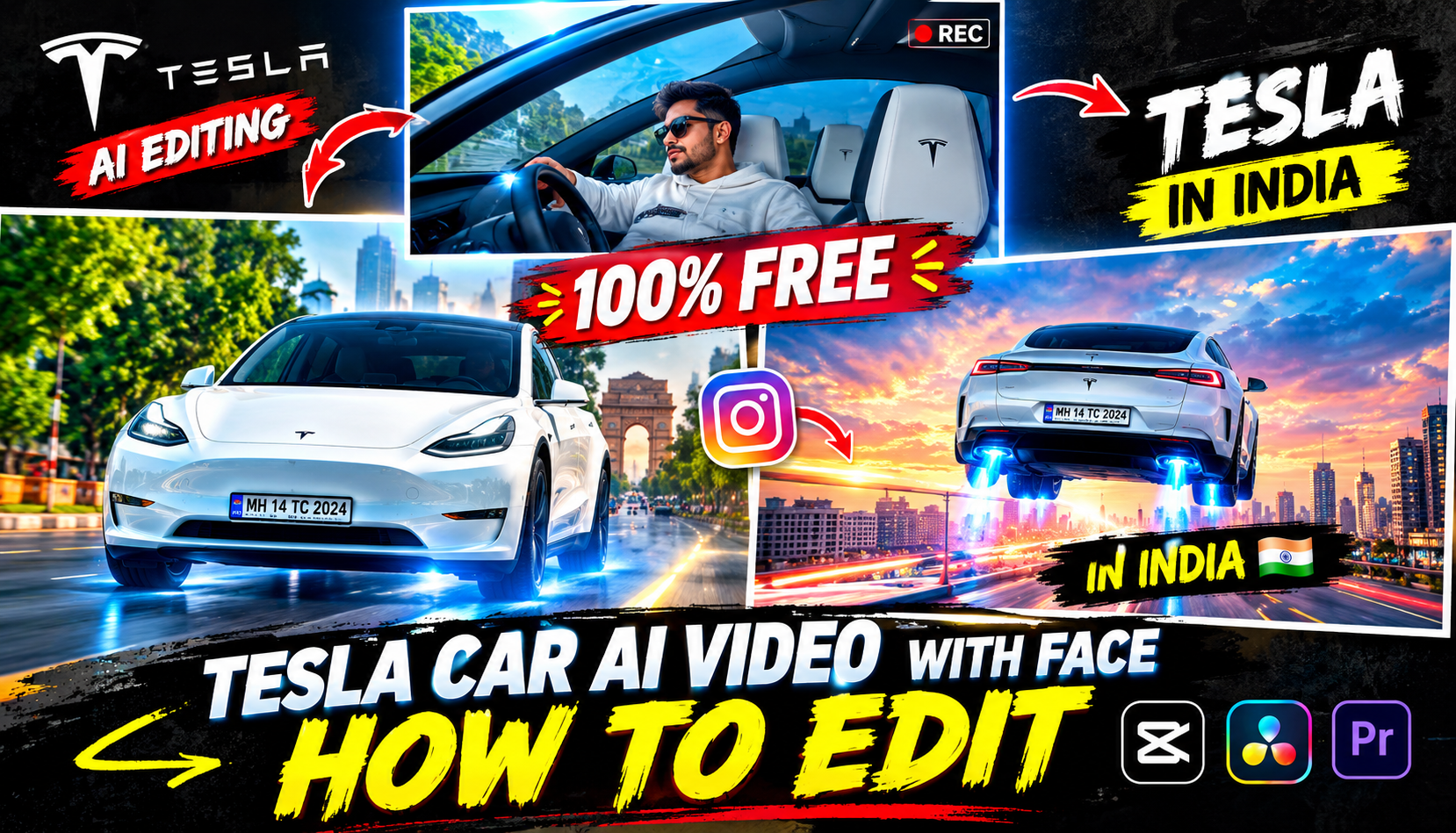
Artificial intelligence is changing the way people create videos. Today, creators can transform ordinary car images into futuristic animations featuring flying vehicles, cinematic cityscapes, dramatic camera movements, and science-fiction environments. One particularly exciting idea is the AI Tesla flying video, where a Tesla-inspired electric car appears to lift off the ground and fly through the sky.
Imagine a sleek electric car driving along a modern highway before suddenly rising into the air. The vehicle passes between futuristic skyscrapers, flies above the clouds, or travels through a neon-lit city at sunset. With the help of AI image generators, image-to-video tools, and simple editing applications, you can create these imaginative scenes without filming a real vehicle.
You don’t need advanced animation skills or an expensive computer to get started. A good image, a detailed AI prompt, and a few editing techniques can help you produce an impressive result.
In this guide, you’ll learn how to create AI Tesla flying videos step by step. We’ll cover image generation, animation prompts, flying effects, camera movements, video editing, sound design, YouTube thumbnails, and SEO tips to help you publish your finished videos.
Whether you’re a beginner or an experienced content creator, this tutorial will help you develop your own futuristic flying car video concept.
What Is an AI Tesla Flying Video?
An AI Tesla flying video is a digitally generated or edited video that depicts a Tesla vehicle, or a Tesla-inspired electric car, flying through an imaginary environment.
These videos combine automotive visuals with science-fiction animation. The car might rise vertically from a road, glide over a city, travel above mountains, or transform into a futuristic flying vehicle.
Common ideas include:
- A Tesla flying above a modern city.
- A futuristic electric car taking off from a highway.
- A Tesla hovering over the clouds.
- A flying car passing between skyscrapers.
- A Tesla-inspired vehicle traveling through space.
- A futuristic car flying over mountains at sunset.
- An electric vehicle transforming into a science-fiction aircraft.
- A cinematic flying car reveal with dramatic lighting.
These scenes are fictional visual effects, not demonstrations that an ordinary Tesla can fly. The goal is to create entertaining AI-generated content for social media, creative projects, and video tutorials.
Why Are AI Flying Car Videos Popular With Creators?
Flying car videos combine two visually interesting subjects: modern electric vehicles and futuristic technology.
The unusual movement immediately creates a sense of surprise. Viewers expect a car to remain on the road, so seeing one rise into the sky can make an ordinary scene feel extraordinary.
AI tools also make it possible to experiment with different visual concepts without building physical models or filming complex stunts.
Creators can explore futuristic transportation, cinematic storytelling, science-fiction environments, and imaginative vehicle transformations.
For short-form content, the effect can be especially effective when the video begins with a familiar scene and then introduces an unexpected moment.
For example, a video might start with a Tesla driving down a city street. A few seconds later, the vehicle rises above the road and flies between skyscrapers.
The contrast between the ordinary beginning and the futuristic reveal gives the clip a clear visual story.
What You Need to Create AI Tesla Flying Videos
Before starting, prepare the following resources.
- AI image generator: To create a Tesla image or futuristic electric car scene.
- AI video generator: To animate the image and generate flying movement.
- Video editing application: To combine clips, add music, and create transitions.
- Sound effects: To emphasize takeoff, wind, and futuristic movement.
- Creative prompts: To describe the vehicle, environment, and camera movement.
Some tools support text-to-video generation, while others animate an uploaded image. You can choose either approach depending on your preferred workflow.
Free plans may have generation limits, watermarks, or restrictions on commercial use, so check the terms of each service before publishing your videos.
Step 1: Choose Your AI Tesla Flying Video Idea
Start by deciding what kind of flying car video you want to create.
A clear concept makes it easier to write prompts and generate consistent scenes.
Here are five ideas for your first project.
Flying Tesla over a city
Show an electric sedan rising above the road and gliding between futuristic skyscrapers.
Flying Tesla over mountains
Create a cinematic landscape with mountains, clouds, and a car hovering above the highway.
Cyberpunk flying car
Use neon lighting, reflective roads, and a futuristic city at night.
Tesla above the clouds
Create a dramatic scene where the car rises into the sky and travels above a layer of clouds.
For beginners, a single car taking off above an empty road is a good starting point. It provides a clear subject and avoids the complexity of animating several vehicles.
Step 2: Generate a High-Quality Tesla Image
The next step is to create the starting image for your animation.
Open an AI image generator and describe the vehicle, camera angle, lighting, background, and overall visual style.
If your tool supports image references, you can upload a vehicle image that you have permission to use. This can help the generator maintain a closer resemblance to the desired design.
AI Tesla flying image prompt
Create a highly realistic futuristic electric sedan inspired by modern Tesla styling, with a sleek aerodynamic body, glossy black paint, panoramic glass roof, detailed wheels, and elegant headlights. The car is positioned on a wide modern highway surrounded by futuristic skyscrapers at sunset. Dramatic orange and purple clouds fill the sky, cinematic reflections appear on the vehicle, professional automotive photography, realistic materials, detailed environment, wide composition with space above the car for a flying animation, vertical 9:16 framing.
This prompt establishes the vehicle’s appearance and the environment.
If you specifically want a recognizable Tesla model, identify the model in your prompt and provide an appropriate reference image where permitted. AI generators may not reproduce every brand detail accurately.
Tips for generating better car images
- Use a clear camera angle.
- Keep the vehicle fully visible.
- Describe the lighting and environment.
- Avoid unnecessary objects around the car.
- Choose a high-resolution output when available.
- Use a consistent image style for all scenes.
A strong starting image gives the animation tool a clearer visual reference.
Step 3: Turn the Tesla Image Into a Flying Video
Now upload your image to an AI video generator that supports image-to-video animation.
Choose a short duration for your first experiment. If the tool supports it, a clip of around four to eight seconds is a useful starting point.
Enter a prompt that describes how the car should move.
AI Tesla flying video prompt
Animate the futuristic black electric sedan as it slowly lifts off the highway and begins flying into the sky. The vehicle rises smoothly, maintains a stable horizontal position, and moves forward above the road. The camera follows the car with a cinematic tracking movement. Keep the car’s body shape, wheels, headlights, glass roof, and paint color consistent throughout the animation. Add subtle atmospheric motion, realistic reflections, soft clouds, and cinematic sunset lighting. Smooth motion, high-quality science-fiction visuals, no sudden transformations.
This prompt focuses on the central action: the car taking off and flying.
The instruction to maintain the vehicle’s appearance can help encourage consistency, although it cannot guarantee a perfect result.
Generate a clip and review the movement carefully.
If the car changes shape or the wheels distort, try a simpler prompt or generate another version.
Step 4: Create a Realistic Takeoff Effect
A convincing flying car video usually needs a clear transition between driving and flying.
You can create this effect in three stages.
Stage 1: The car is on the road.
Begin with a normal driving scene. The vehicle moves forward while the camera follows it.
Stage 2: The car begins to rise.
The vehicle slowly lifts above the road. The camera tilts upward to follow the movement.
Stage 3: The car flies away.
The car continues into the sky, passing above buildings or clouds.
You can generate the entire sequence in one AI clip if your tool handles complex movement well. Otherwise, create three separate clips and connect them in your editor.
When using separate clips, try to maintain a similar car position and camera angle at the transition point.
This helps the movement feel continuous rather than looking like three unrelated scenes.
Step 5: Create a Futuristic Flying Tesla Scene
Once you have the basic takeoff effect working, experiment with a more imaginative environment.
For example, you could show the car flying above a futuristic city filled with illuminated buildings and elevated roads.
Futuristic city prompt
You can modify the environment to create different moods.
For a peaceful scene, use mountains, clouds, and golden sunlight. For a dramatic science-fiction look, use neon lighting, tall buildings, and a dark blue sky.
Keep the vehicle as the main subject so that viewers can easily understand what’s happening.
Step 6: Try a Tesla Flying Above the Clouds
A flying car above the clouds can create a dramatic cinematic effect.
The key is to establish a sense of height and scale.
Use a wide view of the sky, soft clouds, and sunlight coming through the atmosphere.
AI prompt for a flying Tesla above clouds
This type of scene works well for cinematic edits because it provides a clear subject and a visually rich background.
Avoid adding too many effects at once. Excessive light streaks, explosions, and rapid camera movements may make the car harder to see.
Prompt:
Create a 30-second photorealistic cinematic video, 16:9. Cut naturally between wide, medium and close-up shots.
REFERENCE IMAGES — upload in this exact order:
@image1 — exact silver car design and cockpit. Preserve the body, wheels, spoiler, lights and steering yoke. Use the collage as a design reference only; do not show split screens.
@image2 — downward thruster jets and white vapor during takeoff.
@image3 — street location, traffic, buildings, trees and daylight. If replaced, use the new location consistently.
@image4 — driver identity and clothing. Preserve facial identity, hairstyle, beard, natural skin texture and outfit. No beautification. If replaced, use the new person consistently.
0–4s — WIDE ESTABLISHING SHOT:
Recreate the street from @image3. The silver car from @image1 is stationary in the traffic queue, facing the same direction as surrounding vehicles. Camera approaches the driver’s window.
4–7s — MEDIUM INTERIOR:
The person from @image4 sits in the left driver’s seat, seatbelt fastened. They look at the motionless traffic, sigh and tap their fingers on the steering yoke.
7–10s — CLOSE-UP:
The driver checks a wristwatch. Cut to their face: an impatient expression, then a subtle knowing smile as they get an idea.
10–13s — DETAIL SHOT:
The driver’s right index finger presses a flight-mode button on the center console. Left hand stays on the yoke. Cockpit lights activate; a low mechanical hum builds.
13–17s — LOW REAR CLOSE-UP:
Match the thruster effect from @image2. Powerful white vapor jets fire downward from under the car and spread across the asphalt. Subtle blue-white nozzle glow and realistic air distortion.
17–21s — WIDE SIDE SHOT:
The same car rises vertically, clearing the roofs of surrounding vehicles. All four wheels remain attached. White vapor rolls outward below. Other cars remain on the road; nearby drivers look up.
21–25s — MEDIUM INTERIOR, THEN EXTERIOR:
Clearly show the same person from @image4 smiling behind the wheel. Cut outside: the car hovers above traffic, then tilts its nose slightly forward.
25–30s — WIDE AERIAL TRACKING:
The car accelerates forward above the traffic with a powerful whoosh. Camera follows from behind along the same boulevard from @image3 as the car flies into the distance.
Maintain the same driver, clothes, car geometry, interior, daylight and street across every cut. Driver remains seated inside throughout. Natural traffic sounds, sigh, button click, thruster buildup and rushing wind. No music, dialogue, captions, split screens, car transformation or unfolding wings.
Step 7: Use the Right Camera Movement
Camera movement can make your AI flying Tesla video feel more professional.
Here are four techniques to try.
Tracking shot: The camera follows the car as it flies forward.
Low-angle takeoff: The camera starts below the car and tilts upward as the vehicle rises.
Side view: The camera moves alongside the car, showing its shape and flight path.
Wide aerial reveal: The camera pulls back to reveal the city, mountains, or clouds surrounding the vehicle.
For your first video, choose one main camera movement.
If you ask the AI to rotate around the car, zoom rapidly, move backward, and switch perspectives at the same time, the result may become inconsistent.
Simple camera instructions are easier to control and edit.
Step 8: Add Motion Effects and Cinematic Details
After generating the main animation, you can improve the scene with subtle visual effects.
Depending on your editing application, you might add:
- Gentle motion blur
- A gradual zoom
- Light reflections
- A smooth transition
- Atmospheric haze
- A subtle glow
- A short speed ramp
Use these effects to emphasize the car’s movement.
For example, a gradual zoom during takeoff can make the vehicle appear more dramatic. A smooth transition between a road scene and a sky scene can help the flying sequence feel more connected.
Avoid effects that obscure the car or make the scene difficult to understand.
Step 9: Add Sound Effects and Background Music
Audio plays an important role in cinematic AI car videos.
A takeoff scene can feel more dramatic when the sound design matches the visual movement.
Consider using:
- A subtle electric motor sound
- A futuristic activation tone
- A soft whoosh during takeoff
- Wind ambience
- A cinematic bass impact
- Atmospheric background music
For example, the music could begin softly while the car drives along the road. As the vehicle starts rising, introduce a low cinematic sound and increase the intensity of the music.
When the car reaches the sky, let the music become more spacious and atmospheric.
Use original or properly licensed audio, especially if you intend to monetize the video.
Don’t make the sound effects excessively loud. The goal is to support the visuals rather than overwhelm them.
Conclusion
Creating AI Tesla flying videos is an exciting way to experiment with futuristic automotive animation, cinematic storytelling, and AI video generation.
The process begins with a clear concept and a high-quality car image. You then animate the vehicle using a detailed prompt, create a smooth takeoff sequence, and build a flying scene with appropriate camera movement and lighting.
After generating your clips, use a video editor to combine the scenes, add music and sound effects, and prepare the final video for your preferred platform.
For the best results, keep your first project simple. Focus on one vehicle, one takeoff, and one flying environment. Once you understand the workflow, experiment with futuristic cities, mountain landscapes, sunset skies, and imaginative outer-space scenes.
For More Click Here