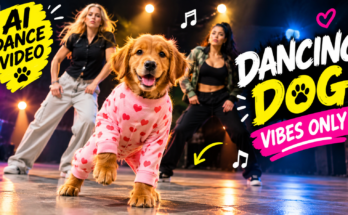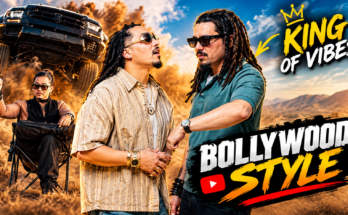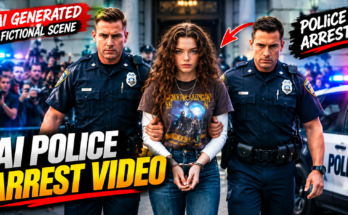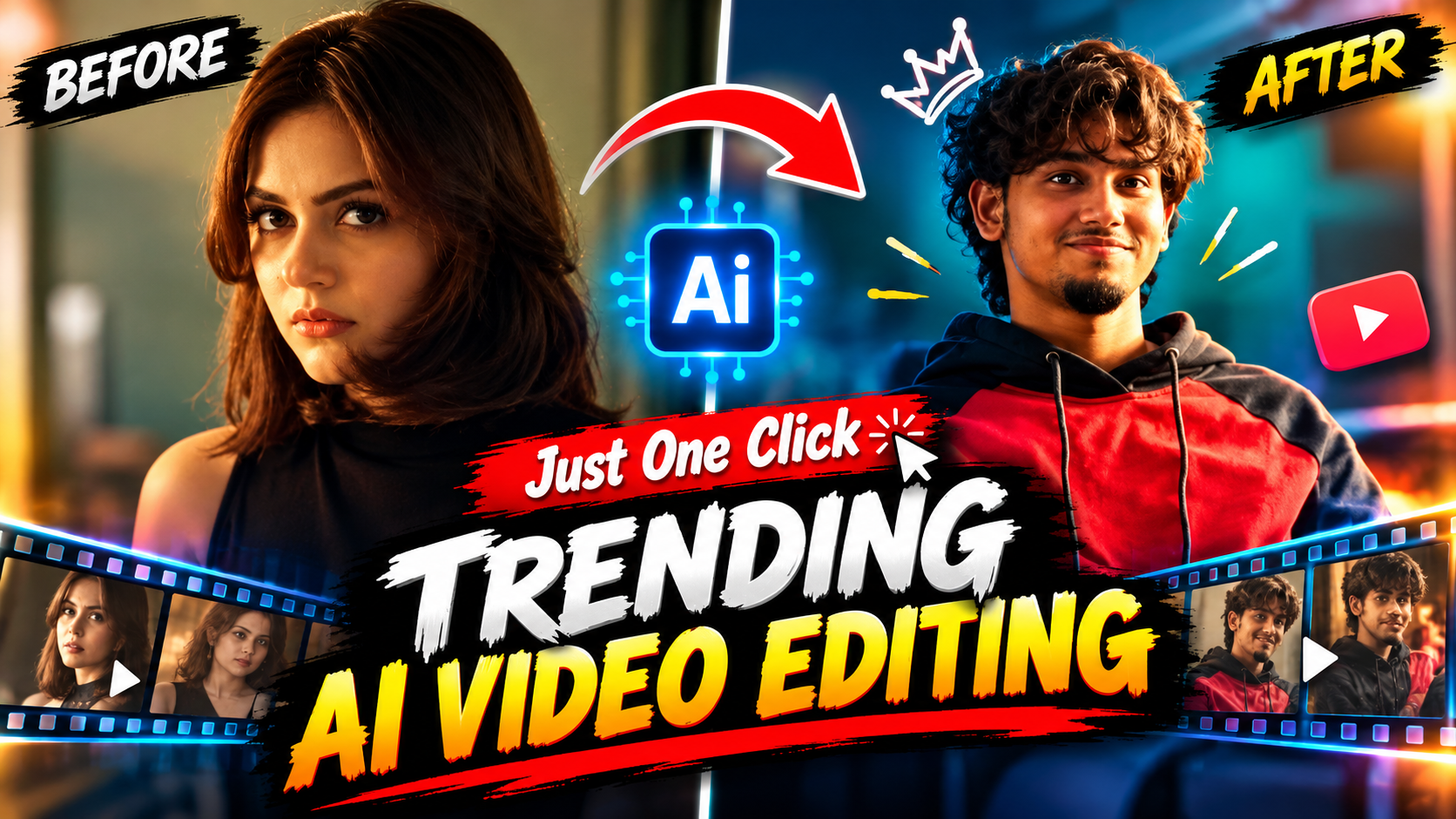
Artificial intelligence has changed the way people create content. What once required expensive cameras, actors, locations, and professional editing software can now be created with AI tools and a creative idea. From transforming ordinary photos into cinematic clips to creating animated characters, futuristic scenes, dance videos, car edits, and social media reels, AI video creation has become one of the fastest-growing content trends.
If you have seen videos online where a simple photo suddenly turns into a professional cinematic scene, you may have wondered how creators make them. The process is actually much easier than it looks.
In this guide, you will learn how to create trending AI videos easily, even if you are a beginner. We will cover everything from choosing an idea and generating images to AI animation, prompts, editing, music, captions, thumbnails, and SEO optimization.
What Are Trending AI Videos?
Trending AI videos are videos created or enhanced with artificial intelligence that use creative concepts, visual effects, transformations, animation, or storytelling to attract viewers.
Some popular examples include:
- AI photo-to-video edits
- AI transformation videos
- AI dancing videos
- AI car videos
- AI cinematic videos
- AI travel videos
- AI fashion videos
- AI animal videos
- AI fantasy scenes
- AI character videos
- AI talking-photo videos
- AI movie-style scenes
- AI product advertisements
- AI before-and-after videos
The biggest advantage is that creators can turn a simple idea into a visually impressive video without traditional production equipment.
Why Are AI Videos Trending?
There are several reasons AI videos have become popular.
Easy Content Creation
AI reduces the amount of manual work required to create certain visual effects.
Creative Possibilities
You can create environments and situations that would be difficult or expensive to film in real life.
Social Media Friendly
Short AI videos can work well for platforms such as YouTube Shorts, TikTok, Instagram Reels, and Facebook.
Fast Experimentation
You can generate multiple versions of an idea and choose the best one.
Visual Curiosity
People naturally want to see what happens when an ordinary image transforms into something unexpected.
For example, a simple photograph can become a cinematic movie scene, futuristic character, luxury advertisement, or animated story.
How to Create Trending AI Videos Easily
The overall process is simple:
Choose an idea → Create an image → Animate it → Edit the video → Add sound → Add text → Export → Publish
Let’s look at each step.
Step 1: Choose a Trending AI Video Idea
The first step is choosing the right concept.
Don’t begin by opening an AI tool and randomly generating images. Start with a clear idea.
Ask yourself:
What will make someone stop scrolling?
For example:
- What if an ordinary photo became a movie scene?
- What if a normal car became futuristic?
- What if a dog started dancing?
- What would a city look like in 2050?
- What if an old photograph came to life?
- What would a person look like as a superhero?
- What if a normal room transformed into a luxury studio?
Transformation-based concepts are particularly useful because the viewer immediately understands that something is going to change.
Step 2: Create a Strong Hook
A strong hook is essential for short-form videos.
The hook should communicate the idea quickly.
Examples include:
“I turned this photo into an AI movie scene!”
“Watch what AI does to this picture!”
“This was created with AI!”
“One photo. One click. Completely different video.”
“AI just changed everything!”
You can display the hook as text on screen or use it as narration.
The goal is to create curiosity without making false claims.
Step 3: Generate Your Starting Image
Many AI videos begin with an image.
You can use:
- Your own photograph
- A royalty-free image
- An AI-generated image
- A product image
- An illustration
- A fictional character
For the best results, use a clear, high-resolution image.
If you’re generating a new image, your prompt should explain the subject and environment.
Example Prompt
“A cinematic young fictional character standing on a modern city street at sunset, dramatic golden lighting, realistic facial details, stylish clothing, shallow depth of field, detailed background, professional photography, cinematic composition.”
A detailed prompt gives the image generator more information to work with.
Step 4: Turn the Image Into a Video
Once you have your image, the next step is animation.
Image-to-video AI tools can create movement from a still image.
For example, you could instruct the AI:
“The character slowly walks toward the camera while the camera smoothly moves backward. Natural body movement, subtle clothing motion, cinematic lighting, realistic animation.”
Notice that the prompt focuses on movement.
You don’t necessarily need to describe every detail of the image again.
Step 5: Keep Your Animation Simple
One of the most common mistakes beginners make is asking AI to perform too many actions in one clip.
For example, this is overly complicated:
“The character runs, jumps, dances, spins, changes clothes, flies into the sky, turns into a superhero, and disappears.”
Instead, create separate clips.
Clip 1
The character walks toward the camera.
Clip 2
The character turns around.
Clip 3
The environment transforms.
Clip 4
The camera moves upward.
You can then combine these clips in an editor.
This approach usually gives you greater control.
Step 6: Use Cinematic Camera Movements
Camera movement can make an AI video look much more professional.
Try these movements:
Slow Push-In
The camera gradually moves closer to the subject.
Pull-Out
The camera moves away to reveal the environment.
Tracking Shot
The camera follows a moving subject.
Pan
The camera moves horizontally.
Tilt
The camera moves vertically.
Orbit
The camera moves around the subject.
For example:
“Slow cinematic camera push toward the subject, smooth movement, stable composition, shallow depth of field.”
Don’t use complicated camera movements for every shot. A few well-placed movements are usually enough.
Step 7: Create Multiple Versions
Don’t expect the first AI generation to be perfect.
AI video generation can sometimes produce:
- Distorted hands
- Unnatural faces
- Strange body movements
- Flickering objects
- Changing clothes
- Background distortions
- Inconsistent characters
Generate several variations and select the best result.
This is an important part of AI video creation.
The goal isn’t necessarily to create the perfect clip on the first attempt. Instead, create multiple versions and edit the strongest material together.
Step 8: Maintain Character Consistency
If your video contains the same character in multiple scenes, consistency becomes important.
The character may otherwise change appearance from one clip to another.
Try to keep these details consistent:
- Hairstyle
- Clothing
- Face
- Age
- Body proportions
- Accessories
- Color palette
If your AI tool supports reference images, use the same reference throughout your project.
You can also include instructions such as:
“Maintain the same character identity, facial structure, hairstyle, clothing, and body proportions throughout the video.”
Step 9: Create AI Transformation Videos
Transformation videos are among the easiest AI concepts to understand.
You can create transformations such as:
Normal → Cinematic
Old → Modern
Simple → Luxury
Human → Fantasy character
Car → Futuristic car
Room → Luxury room
Photo → Movie scene
A transformation can be created by generating two different visual states and using animation or editing techniques to connect them.
Step 10: Add Music
Music can completely change the feeling of an AI video.
Choose music that matches your concept.
For example:
Cinematic AI Video
Use dramatic instrumental music.
Car Video
Use energetic music.
Dance Video
Use a rhythmic track.
Emotional Video
Use soft atmospheric music.
Fantasy Video
Use cinematic or magical-sounding music.
Make sure you have the necessary rights to use the music, especially if you’re creating commercial content.
Step 11: Sync the Video With the Beat
Beat synchronization can make your video feel much more professional.
For example:
Beat 1: Camera movement
Beat 2: Character movement
Beat 3: Visual transformation
Beat 4: Text appears
Beat 5: Final reveal
You don’t need to synchronize every single frame. Instead, use important beats to introduce major visual changes.
Refrence Video:
Step 12: Add Sound Effects
Sound effects are another simple way to improve AI videos.
Depending on your concept, you can add:
- Whoosh sounds
- Camera clicks
- Footsteps
- Car engines
- Door sounds
- Wind
- Rain
- Crowd ambience
- Digital effects
- Impact sounds
For a transformation video, a short whoosh effect during the transition can make the change feel more powerful.
Prompt:
Create a 10-second vertical 9:16 photorealistic devotional video, 24 fps, with cinematic detail, warm natural light and one continuous frontal tracking shot.
SINGLE PHOTO INPUT
Use the uploaded photograph of the girl as the sole reference for her identity and facial expression.
Construct the complete scene described below from text. The uploaded photograph is an identity reference, not a picture to display before the scene. Only one human girl appears.
HIGHEST PRIORITY – FACE AND EXPRESSION
Preserve the uploaded girl’s recognizable face, exact age, facial proportions, skin tone, eyes, nose, lips, cheeks, jawline and hairline throughout the video. Maintain the photograph’s precise facial expression: the same smile intensity, mouth opening or closure, visible teeth, lip corners, cheek tension, eyebrow position and emotional look. If the photograph has a neutral expression, retain it; if she is smiling, retain that exact smile. Keep her head orientation close to the reference. No talking, lip-sync, widening smile, laughing, surprised eyes, eyebrow acting, beauty filtering or face reshaping.
Maintain a stable, reference-matched face across every frame. Create liveliness through the surroundings, scooter movement, fabric and subtle torso breathing without changing her expression.
Her identity must remain completely separate from Ganesha.COMPOSITION AND STYLING
The girl sits at the front of a glossy bright-pink vintage Indian scooter, upright, both hands naturally holding their respective black handlebar grips. Dress her in a modest child-sized red silk saree with rich gold floral brocade, a broad gold border and matching short-sleeved blouse. Add small gold jhumkas, a delicate gold necklace, red-and-gold bangles and a tiny red bindi. Arrange her dark hair loosely, with small white flowers at one side, preserving her recognizable hairline and unobstructed face.
A gentle, child-sized Lord Ganesha rides immediately behind her, visible on screen-left beside her head. Give him a distinct elephant face, large soft pink ears, a curled trunk, small tusks, an ornate gold crown with a green jewel and peacock feather, a yellow dhoti, red-and-gold shawl and gold ornaments.
Step 17: Optimize Your AI Video for SEO
SEO can help your content appear in search results.
For a website article targeting this topic, your primary keyword could be:
Create Trending AI Videos Easily
Related keywords include:
- trending AI videos
- AI video editing
- AI video generator
- create AI videos
- AI video creation
- AI image to video
- viral AI videos
- AI video editing tutorial
- AI video prompts
- trending AI video ideas
- AI content creation
- how to make AI videos
Use these phrases naturally throughout your content.
Don’t stuff the same keyword into every paragraph.
Common AI Video Creation Mistakes
1. Starting Without a Story
Random clips may look impressive but often don’t make an engaging video.
Create a simple beginning, middle, and ending.
2. Using Too Much Motion
Complicated animation can cause distortions.
Start with simple movements.
3. Poor Source Images
A low-quality image can produce a low-quality animation.
Use clear images.
4. Ignoring Audio
A visually good video can feel empty without sound.
Use appropriate music and sound effects.
5. Too Much Text
Don’t cover your visuals with paragraphs.
Use short captions.
6. Using Random Styles
If every scene has a different visual style, the video may feel disconnected.
Try to maintain a consistent appearance.
How to Make AI Videos More Engaging
Technical quality isn’t everything.
A simple idea with a strong hook can outperform a complicated video.
Before publishing, ask yourself:
Would I stop scrolling to watch this?
Is the concept understandable immediately?
Does something interesting happen?
Is there a reason to watch until the end?
Does the final result provide a payoff?
These questions can help you improve your videos.
AI Video Ideas You Can Try
If you need inspiration, here are some ideas:
1. Photo to Movie Scene
Turn an ordinary photograph into a cinematic scene.
2. Car Transformation
Transform a normal vehicle into a futuristic concept car.
3. AI Dog Dance
Animate a dog performing a funny fictional dance.
4. Future City
Imagine what a city could look like decades in the future.
5. Old Photo Animation
Create a subtle animated version of an old photograph.
6. Fantasy Character
Transform a fictional character into a cinematic fantasy scene.
7. Fashion Transformation
Create a visual transition between different outfits or styles.
8. Travel Concept
Create a fictional cinematic journey through an imagined location.
Final Thoughts
Learning to create trending AI videos easily is no longer limited to professional filmmakers or experienced editors. AI has made it possible for beginners to experiment with animation, cinematic scenes, transformations, characters, animals, cars, fantasy environments, and many other creative concepts.
The most important part is not simply choosing an AI tool. Your idea, prompt, storytelling, editing, and presentation all contribute to the quality of the final result.
Start with a simple concept. Create a strong image, animate it with a focused movement prompt, and generate multiple versions until you find the best result. Then use video editing to combine your clips, add music, sound effects, captions, and transitions.
For social media, pay special attention to the opening seconds. Show viewers something interesting immediately and give them a reason to continue watching. A strong hook followed by a satisfying transformation or reveal can make a simple AI concept much more engaging.
You should also experiment with different styles. Try cinematic videos, funny animal animations, futuristic car scenes, photo transformations, fantasy stories, and other concepts to discover what your audience enjoys.
Finally, remember that AI-generated content should be presented honestly. If a scene could reasonably be mistaken for real footage—especially when it involves real people, public figures, police, disasters, or other sensitive events—make the fictional or AI-generated nature clear.
For More Click Here