AI-generated videos have opened up a new world of creative possibilities for content creators. With modern AI image and video tools, you can create fictional police scenes, dramatic arrest sequences, detective stories, action shorts, and cinematic crime-story videos without filming an actual scene.
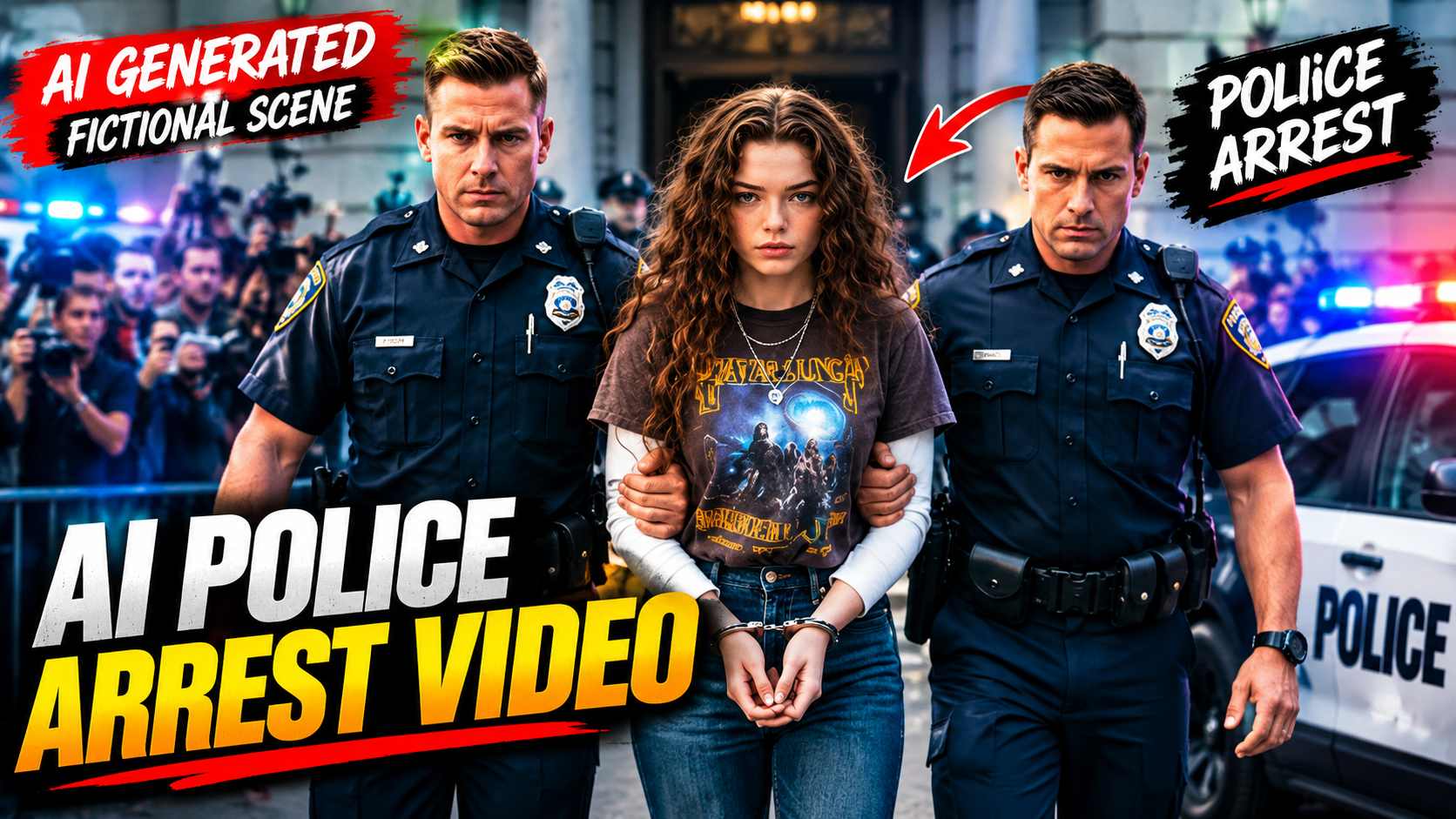
One popular concept is the AI police arrest video. These videos can show a fictional character being approached by police officers, placed under arrest, escorted toward a police vehicle, or taken through a dramatic cinematic scene.
In this guide, you’ll learn how to make AI police arrest videos step by step, including how to create the characters, generate realistic police scenes, animate images, write effective AI prompts, add camera movements, create sound effects, and edit everything into a professional short video.
Important: Keep these videos clearly fictional or AI-generated, especially when using recognizable people, police uniforms, logos, or real-world locations. Don’t present an AI-generated arrest as genuine evidence that a real person was arrested.
What Is an AI Police Arrest Video?
An AI police arrest video is a fictional video created with artificial intelligence that depicts a police-related scene.
For example, your video could show:
- A fictional character being approached by police
- Police officers arriving at a fictional location
- An officer speaking to a suspect
- A fictional arrest scene
- Handcuffs being placed on a character
- A suspect being escorted toward a police vehicle
- A detective investigating a fictional case
- A dramatic police station scene
- A cinematic crime-story sequence
The entire sequence can be generated digitally rather than recorded with real actors and police officers.
The basic workflow is:
Idea → AI image → AI animation → Video editing → Sound design → Final video
Why Are AI Police Videos Popular?
Police and detective stories have always been popular in movies, television, and short-form content because they naturally create suspense and storytelling opportunities.
AI makes it possible for creators to experiment with these concepts without organizing a traditional film production.
For example, you can create a fictional story involving:
Scene 1: A character walking through a city
Scene 2: Police vehicles arriving
Scene 3: Officers approaching the character
Scene 4: The character being arrested
Scene 5: Officers escorting the character
Scene 6: A police vehicle leaving the scene
Each scene can be generated separately and then combined into one short video.
What You Need to Make an AI Police Arrest Video
The process doesn’t require professional filmmaking equipment.
You generally need:
1. AI Image Generator
Use an AI image tool to create your fictional characters and scenes.
2. AI Video Generator
An image-to-video tool can animate your generated images.
3. Video Editing Software
Use an editor to combine clips and add sound, music, captions, and transitions.
4. Good Prompts
Detailed prompts help you control the appearance of your scene.
5. A Simple Story
Planning your scenes before generating them makes the final video much more coherent.
Step 1: Create a Story Concept
Before generating anything, decide what happens in your video.
Don’t start with only:
“Make a police arrest video.”
That’s too general.
Instead, create a fictional scenario.
For example:
“A fictional detective story in which police officers arrive at a city location and arrest a fictional suspect after a dramatic investigation.”
Now divide the idea into several scenes.
Example Storyboard
Scene 1: Fictional character walking outside a building
Scene 2: Police vehicle arrives
Scene 3: Officers approach the character
Scene 4: Officer speaks with the character
Scene 5: Fictional character is placed under arrest
Scene 6: Character is escorted toward the vehicle
Scene 7: Police vehicle leaves the location
A storyboard helps maintain continuity.
Step 2: Create Your Fictional Character
Start by creating the main character.
You can specify:
- Age range
- Clothing
- Hairstyle
- Facial characteristics
- Body type
- Location
- Expression
- Lighting
For example:
Character Prompt
“Create a fictional adult male character wearing a dark jacket and casual clothing, standing outside a modern city building, cinematic dramatic lighting, realistic facial features, natural expression, professional film photography, realistic environment, fictional movie character.”
If you need multiple scenes, try to keep the same character description throughout the project.
Step 3: Create the Police Officers
Next, generate fictional police officers.
AI Police Scene Prompt
“A cinematic fictional police scene featuring two professional police officers approaching an adult fictional character outside a city building, realistic police uniforms, patrol vehicle in the background, dramatic evening lighting, realistic urban environment, professional crime-drama cinematography, fictional movie scene.”
Using terms such as “fictional movie scene” can help establish the creative context.
If you’re using real police insignia or uniforms, avoid presenting the generated scene as actual footage from a real police department.
Step 4: Generate the Arrest Scene
Now create the main scene.
AI Arrest Scene Prompt
“A fictional cinematic arrest scene from a crime drama, two police officers calmly placing an adult fictional character under arrest outside a city building, professional police uniforms, patrol vehicle nearby, realistic body positioning, dramatic but non-graphic atmosphere, evening lighting, cinematic camera angle, realistic urban environment, fictional film production.”
The focus should be on storytelling rather than graphic violence.
Step 5: Create Multiple Camera Angles
One image isn’t enough if you want a professional-looking video.
Create several views of the same fictional event.
Wide Shot
Shows the entire environment.
“Wide cinematic shot of a fictional police arrest scene outside a city building, police vehicle visible in the background, dramatic evening atmosphere.”
Medium Shot
Focuses on the characters.
“Medium cinematic shot of two fictional police officers speaking with an adult character during a fictional arrest scene.”
Close-Up
Focuses on facial expressions.
“Cinematic close-up of a fictional character looking surprised during a dramatic police scene, realistic expression, shallow depth of field.”
Rear Shot
Shows the officers and character from behind.
“Cinematic rear-angle shot showing fictional police officers escorting an adult character toward a patrol vehicle.”
Multiple angles make the final edit feel more like a real movie sequence.
Step 6: Turn the Images Into Video
Once your images are ready, upload them to an image-to-video AI tool.
The most important part is describing the movement.
For example:
“The two fictional officers slowly approach the character while the camera gently tracks backward. Natural walking motion, realistic body movement, stable camera, cinematic lighting.”
For the next scene:
“The officers calmly escort the character toward the parked patrol vehicle while the camera follows from behind, realistic walking motion, subtle clothing movement, cinematic crime-drama style.”
Keep your animation instructions simple.
Step 7: Use Simple Movements
AI video models can struggle when you request too many actions simultaneously.
Avoid prompts like:
“The officers run, arrest the character, fight him, put him in the car, drive away and chase another vehicle.”
Instead, divide the sequence into separate clips.
Clip 1
“The officers walk toward the character.”
Clip 2
“The officers speak with the character.”
Clip 3
“The officers escort the character toward the vehicle.”
Clip 4
“The patrol vehicle drives away.”
This approach gives you much more control.
Step 8: Add Cinematic Camera Movement
Camera movement can dramatically improve an AI police video.
Try:
Slow Push-In
The camera gradually moves toward the characters.
Tracking Shot
The camera follows the officers as they walk.
Side Tracking
The camera moves alongside the characters.
Wide Establishing Shot
The camera shows the location before the action begins.
Over-the-Shoulder Shot
The camera looks over one character’s shoulder toward another.
For example:
“Slow cinematic camera push toward the fictional police officers and character, stable framing, realistic crime-drama cinematography.”
Step 9: Keep Your Characters Consistent
Character consistency is one of the biggest challenges with AI-generated videos.
The character’s:
- Face
- Clothing
- Hairstyle
- Height
- Body shape
- Police uniform
may change between generations.
To reduce this problem, repeat important details in your prompts.
For example:
“Maintain the same fictional character appearance, hairstyle, clothing, facial structure, and body proportions as the reference image.”
If your AI tool supports reference images or character consistency, use those features.
Step 10: Create the Police Vehicle Scene
A police vehicle can make the scene immediately recognizable.
Police Vehicle Prompt
“A fictional cinematic police patrol vehicle parked outside a modern city building at night, emergency lights illuminated, wet pavement reflecting the lights, dramatic atmosphere, realistic automotive details, professional crime-drama cinematography.”
For an arrival scene:
“A fictional police patrol vehicle arriving outside a city building, emergency lights flashing, cinematic nighttime environment, realistic road reflections, professional film lighting.”
Use fictional or generic markings when appropriate rather than implying that footage belongs to a particular real police department.
Step 11: Animate the Police Vehicle
For an arrival sequence:
“The fictional patrol vehicle slowly arrives and stops near the building while the camera smoothly pans to follow it, realistic vehicle movement, cinematic lighting.”
For the departure:
“The fictional patrol vehicle slowly drives away from the location while the camera remains stationary, realistic movement, cinematic nighttime lighting.”
Simple vehicle movement generally produces more stable results.
Step 12: Add Police Siren and Ambient Sounds
Sound design can make a huge difference.
You can add:
- Fictional police siren effects
- Vehicle engine sounds
- Footsteps
- City traffic
- Door sounds
- Radio-style ambience
- Background crowd noise
Don’t rely only on the AI-generated video’s original audio.
A separate sound layer gives you more control.
Make sure you have the appropriate rights to use any sound effects or music in your project.
Step 13: Add Background Music
Choose music according to your story.
Suspense Story
Use a slow cinematic soundtrack.
Action Scene
Use energetic instrumental music.
Detective Story
Use mysterious background music.
Dramatic Scene
Use emotional cinematic music.
Keep the music below dialogue and important sound effects.
Step 14: Add Text and Captions
Text can help explain that your video is fictional.
Consider adding:
“AI-GENERATED FICTIONAL SCENE”
or:
“FICTIONAL CRIME DRAMA”
You can also add a story title:
“The Midnight Arrest — AI Short Film”
This is especially useful when the scene involves recognizable people, locations, or institutions.
Step 15: Edit Your AI Police Clips
Import all generated clips into your video editor.
A possible sequence is:
Establishing shot → Police arrival → Officers approach → Conversation → Arrest → Escort → Vehicle departure
Trim any distorted or unnecessary frames.
Then add:
- Transitions
- Music
- Sound effects
- Captions
- Color grading
- Camera effects
Avoid using too many transitions.
Simple cuts often work better for dramatic scenes.
Step 16: Use Slow Motion Carefully
Slow motion can make a dramatic moment more cinematic.
For example, slow down:
- Police vehicle arrival
- Character turning around
- Officers approaching
- Final vehicle departure
But don’t slow down the entire video.
Using slow motion only at important moments creates more visual variety.
Step 17: Add a Cinematic Color Style
Color grading can help make separate AI clips look like they belong to the same film.
For example, you could use:
- Dark nighttime tones
- Warm street lighting
- Neutral documentary-style colors
- Moody cinematic contrast
Try to keep the same visual treatment across every scene.
Step 18: Create a Vertical Video for Social Media
If you’re creating content for:
- TikTok
- Instagram Reels
- YouTube Shorts
a vertical 9:16 format is commonly used.
A typical resolution is:
1080 × 1920 pixels
Keep important characters near the center of the frame to reduce the chance of cropping.
Step 19: Create a Strong Opening
The first few seconds should immediately establish the story.
For example:
Opening:
A patrol vehicle arrives outside a building with its lights flashing.
Then display:
“AI-GENERATED FICTIONAL ARREST SCENE”
After that, cut to the officers approaching the character.
This gives viewers immediate context.
AI Police Arrest Video Prompt Template
You can use this template to create your own scenes:
“Create a cinematic fictional police scene featuring [fictional character] at [location]. Two professional police officers [action]. Include [police vehicle/environment], dramatic [lighting], realistic body movement, natural facial expressions, cinematic composition, professional crime-drama cinematography, realistic details, fictional movie scene.”
For animation:
“Animate the scene with [specific movement]. Use a smooth [camera movement], realistic body motion, subtle environmental movement, stable framing, cinematic lighting, and natural pacing.”
Example Complete AI Police Video
Here’s a simple seven-scene concept.
Scene 1 — City Establishing Shot
A fictional city street at night with police lights visible in the distance.
Scene 2 — Police Arrival
A generic fictional patrol vehicle arrives at the location.
Scene 3 — Officers Approach
Two fictional officers walk toward an adult character.
Scene 4 — Conversation
The officers speak with the character.
Scene 5 — Arrest
The officers calmly place the character under arrest.
Scene 6 — Escort
The character is escorted toward the patrol vehicle.
Scene 7 — Ending
The vehicle leaves while the camera remains behind.
This creates a complete story without requiring a long AI-generated shot.
Common AI Police Video Problems
1. Changing Faces
The character’s face may change between clips.
Solution: Use a reference image and consistent descriptions.
2. Distorted Hands
AI can sometimes generate unnatural hands.
Solution: Avoid unnecessary close-ups of hands and generate additional versions.
3. Changing Uniforms
Police uniforms may change between scenes.
Solution: Repeat the same uniform description and use reference images when available.
4. Unstable Vehicles
The patrol vehicle may change shape.
Solution: Generate a dedicated vehicle reference image and reuse it.
5. Excessive Movement
Too much animation can cause visual distortions.
Solution: Use one primary action per clip.
How to Make AI Police Videos Look More Realistic
Realism comes from consistency and believable details.
Describe:
Environment
- Street
- Buildings
- Parking area
- Weather
- Lighting
Characters
- Clothing
- Facial expressions
- Body positions
- Walking direction
Camera
- Lens perspective
- Camera height
- Tracking
- Push-in
- Wide shot
Lighting
- Streetlights
- Vehicle lights
- Building lights
- Nighttime illumination
These details give the AI enough information to construct a convincing fictional scene.
SEO Tips for an AI Police Arrest Video Tutorial
If you’re publishing this tutorial on your website, use one primary keyword and several related terms naturally.
Primary Keyword
how to make AI police arrest videos
Related Keywords
- AI police arrest video
- AI police video generator
- AI arrest video
- AI police scene generator
- AI crime video
- AI police video
- AI arrest scene
- AI video generator
- police scene AI prompt
- AI cinematic police video
- image to video police scene
- AI fictional arrest video
Don’t repeat the same keyword excessively. Search engines generally benefit more from useful, well-structured content than from keyword stuffing.
Final Thoughts
Creating an AI police arrest video combines AI image generation, image-to-video animation, sound design, and traditional video editing. The process can be much simpler than filming a conventional short movie, but planning remains important.
Start with a fictional story and divide it into short scenes. Create your characters and police environment first, then generate different camera angles. Use image-to-video AI to animate each shot with simple movement instructions.
For better results, focus on character consistency, realistic camera movement, believable environments, simple animation, and good sound design. Rather than asking AI to create an entire action sequence in one generation, produce several short clips and assemble them during editing.
Most importantly, clearly distinguish fictional AI content from real events. Avoid presenting an AI-generated arrest as genuine footage, particularly when a recognizable person, police officer, government agency, or real location is involved.
For More Click Here