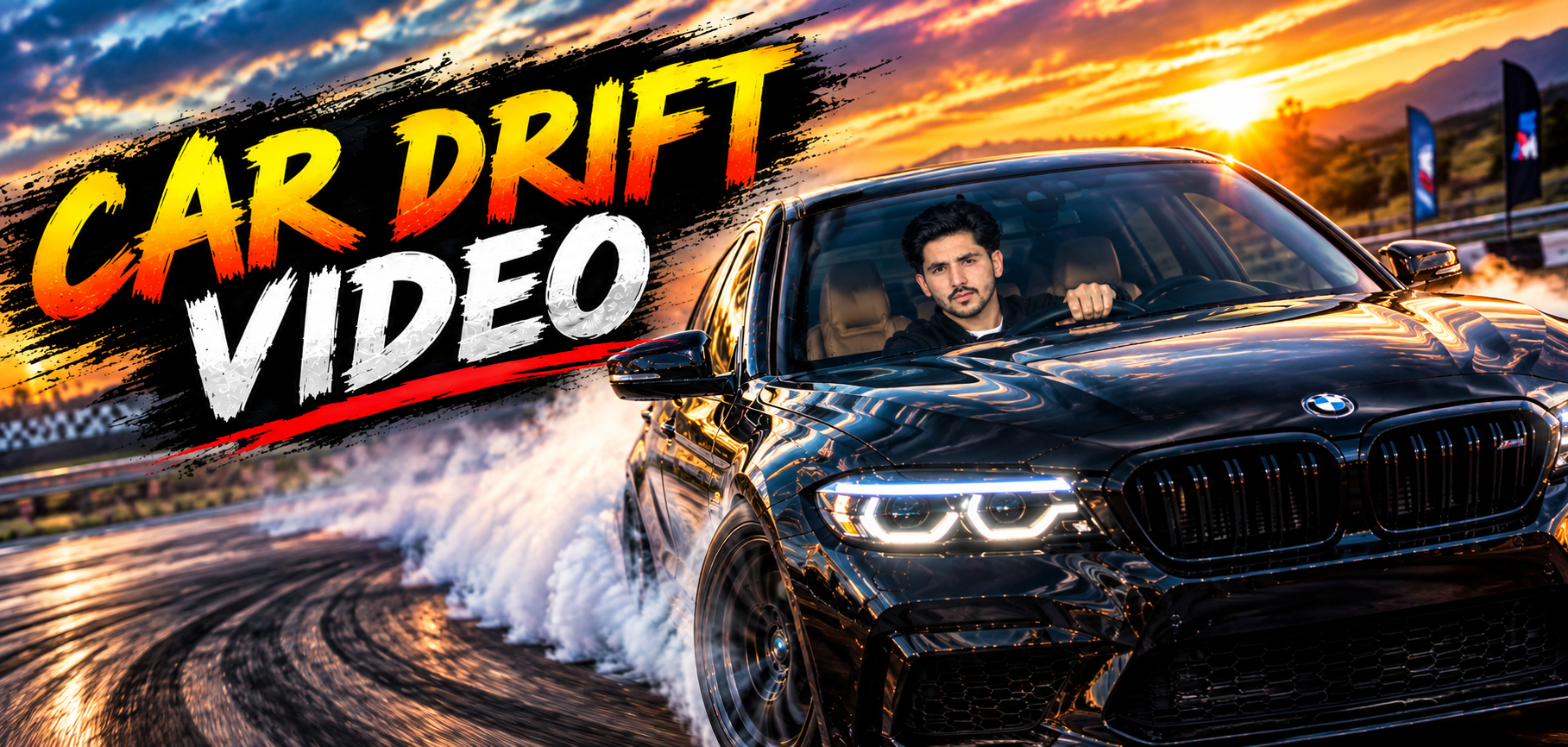
AI-generated car videos are becoming one of the most exciting trends in short-form content. From cinematic supercars to nighttime street scenes, artificial intelligence can transform a simple car image into an impressive animated sequence. One particularly popular idea is the AI car drift video, where creators use AI image generation and image-to-video tools to create dramatic drifting scenes.
You don’t necessarily need a real sports car, a racetrack, expensive cameras, or professional filming equipment. With the right prompts and editing workflow, you can create a fictional car drift video from a single image.
In this guide, you’ll learn how to create AI car drift videos step by step, how to write effective car drift prompts, animate your images, create realistic camera movements, add smoke and motion effects, and edit the final video for TikTok, Instagram Reels, YouTube Shorts, and other platforms.
What Is an AI Car Drift Video?
An AI car drift video is a digitally generated or AI-assisted video showing a car performing a dramatic drifting maneuver in a fictional or simulated environment.
For example, you can create scenes featuring:
- A sports car drifting around a racetrack
- A modified car sliding through a fictional parking area
- A supercar drifting on a closed track
- A muscle car creating tire smoke
- A futuristic vehicle drifting through a neon city
- A rally car sliding around a dirt corner
- A cinematic night drift sequence
- A miniature or toy-style drifting car animation
The basic workflow is simple:
Car image → AI animation → Video editing → Final AI drift video
Instead of physically filming a car, you create the visual concept digitally and then animate it.
Why Are AI Car Drift Videos So Popular?
Car content has always performed well on visual platforms because cars naturally provide dramatic shapes, reflections, movement, and sound.
AI adds another layer of creativity.
You can create a scene that would otherwise require:
- A performance car
- A professional driver
- A closed track
- Multiple cameras
- Camera operators
- Lighting equipment
- Special effects
- Video editing software
AI doesn’t replace real motorsport or professional filmmaking, but it gives creators a way to experiment with fictional automotive scenes without physically staging them.
This is especially useful for creators who want to produce short-form videos quickly.
What You Need to Create an AI Car Drift Video
You can create an AI drift video using a relatively simple workflow.
1. AI Image Generator
First, generate a realistic image of your car and environment.
2. Image-to-Video AI
Next, animate the still image with instructions describing the car’s movement and camera motion.
3. Video Editing App
Finally, combine your clips and add:
- Music
- Sound effects
- Text
- Transitions
- Color adjustments
- Slow motion
- Speed changes
You can complete the workflow on a computer or, depending on the tools you use, a smartphone.
Step 1: Choose Your AI Car Drift Concept
Before generating an image, decide exactly what you want the final video to look like.
Don’t begin with a vague idea such as:
“Make a drifting car.”
Instead, think about the complete scene.
For example:
“A modified sports coupe drifting around a professional closed racetrack at sunset, with tire smoke behind the rear wheels and a cinematic tracking camera.”
Now you have a clear direction.
You should decide:
- Car type
- Car color
- Location
- Time of day
- Weather
- Camera angle
- Drift direction
- Amount of smoke
- Lighting
- Overall style
Step 2: Choose Your Car
The car is the most important part of your scene.
You can choose almost any style, such as:
Sports Car
A low sports coupe can create a modern cinematic look.
Supercar
A high-performance supercar can give your video a luxury aesthetic.
Muscle Car
A classic muscle car works well for aggressive-looking scenes.
JDM-Inspired Car
A modified Japanese performance-car style can create a popular street-racing aesthetic without needing to replicate a particular real-world vehicle.
Rally Car
A rally-inspired car works especially well with dirt, gravel, dust, and mountain environments.
Futuristic Car
A fictional futuristic vehicle can produce a unique science-fiction drift scene.
Step 3: Generate the Car Image
Once you’ve chosen your concept, create the first image.
A strong prompt should describe the vehicle, environment, lighting, composition, and camera position.
AI Car Drift Image Prompt
“A cinematic fictional sports coupe drifting around a professional closed racetrack, aggressive body kit, glossy metallic paint, realistic wheels and tires, tire smoke trailing behind the rear wheels, dramatic sunset lighting, detailed racetrack surface, realistic reflections, dynamic low-angle automotive photography, shallow depth of field, high-detail cinematic composition.”
This provides the AI with several important visual instructions.
Step 4: Choose the Camera Angle
Camera angle can completely change the appearance of an AI car video.
Low Front Angle
The camera is positioned close to the ground in front of the car.
This makes the vehicle appear powerful and dramatic.
Side Angle
A side shot clearly shows the car sliding sideways.
Rear Three-Quarter Angle
This is excellent for showing tire smoke and the direction of the drift.
Tracking Shot
The virtual camera follows the car as it moves around the corner.
Wide Shot
A wide shot reveals the entire environment and makes the drift feel larger.
Best AI Car Drift Prompts
You can experiment with different prompts depending on your desired style.
Cinematic Drift Prompt
“A fictional high-performance sports car performing a controlled drift on a closed professional racetrack, rear tires producing realistic smoke, car sliding smoothly around a corner, cinematic low-angle camera, dramatic sunset lighting, realistic reflections, detailed asphalt, motion blur, professional automotive cinematography, dynamic composition.”
Night Drift Prompt
“A fictional modified sports coupe drifting on a closed track at night, dramatic track lighting, glowing headlights, tire smoke illuminated by bright lights, wet asphalt reflections, cinematic automotive photography, low camera angle, realistic shadows, dynamic motion, high detail.”
Rain Drift Prompt
“A fictional performance car drifting around a closed racetrack after rain, water spray from the tires, wet reflective asphalt, realistic tire smoke mixed with mist, dramatic overcast lighting, cinematic tracking camera, professional motorsport photography, realistic motion.”
Mountain Drift Prompt
“A fictional rally-inspired performance car sliding around a closed mountain road, controlled drift, dust and tire smoke, dramatic mountain landscape, cinematic sunset lighting, dynamic low-angle camera, realistic vehicle details, professional automotive photography.”
Step 5: Generate Multiple Images
Don’t depend on one image for the entire project.
Create several shots.
For example:
Shot 1
Wide view of the racetrack.
Shot 2
Car approaching the corner.
Shot 3
Car beginning the drift.
Shot 4
Side view during the drift.
Shot 5
Rear view with tire smoke.
Shot 6
Close-up of the wheels.
Shot 7
Car exiting the corner.
These images can later become individual video clips.
Step 6: Maintain Car Consistency
One of the biggest challenges when creating AI car videos is consistency.
The AI may accidentally change:
- Wheel design
- Headlights
- Body shape
- Paint color
- Spoiler
- Number of doors
- Car proportions
- Background
- Vehicle model
To reduce these problems, repeat important details in your prompts.
For example:
“Maintain the same vehicle design, metallic color, wheels, body kit, spoiler, headlights, and proportions throughout the sequence.”
If your image-to-image or image-generation tool supports reference images, use the same reference image for multiple scenes.
Step 7: Turn the Image Into a Video
After creating your images, use an image-to-video AI tool.
Upload your car image and describe the movement.
The important thing here is to focus on motion.
You don’t need to rewrite your entire image prompt.
For example:
“Animate the car performing a smooth controlled drift around the corner. The rear of the car slides outward while the front wheels remain directed toward the corner. Tire smoke trails naturally behind the rear wheels. The camera smoothly tracks the vehicle.”
This tells the AI what should move.
Step 8: Write Better Motion Prompts
Image-to-video generation works best when the movement is clear and relatively simple.
Basic Drift Animation Prompt
“The car smoothly slides sideways through the corner while maintaining forward momentum, with realistic tire smoke and subtle suspension movement.”
Tracking Camera Prompt
“The camera smoothly tracks alongside the drifting car while maintaining focus on the vehicle, realistic automotive cinematography.”
Rear Camera Prompt
“The camera follows behind the car as it drifts through the corner, tire smoke spreading naturally behind the rear wheels.”
Slow Motion Prompt
“Create a smooth cinematic slow-motion drift, with realistic tire smoke, subtle wheel movement, and detailed motion blur.”
Step 9: Don’t Overload Your Animation Prompt
A common mistake is asking the AI to perform too many movements simultaneously.
For example:
“The car drifts, jumps, spins, reverses, turns around, crashes, explodes and flies through the air.”
This can result in inconsistent or distorted animation.
Instead, focus on one main action:
“The car performs a smooth controlled drift around the corner while the camera tracks it.”
Once you have that clip, create another shot with a different action.
Step 10: Add Realistic Tire Smoke
Tire smoke is one of the most recognizable visual elements of a drift video.
Your prompt can include:
“Realistic white tire smoke developing behind the rear tires and gradually spreading across the track.”
For a more dramatic scene:
“Dense tire smoke trails behind the rear wheels while remaining physically natural and partially transparent.”
Avoid asking for enormous clouds of smoke unless that’s intentionally part of the visual style.
Step 11: Add Motion Blur
Motion blur can make an AI-generated sequence feel more cinematic.
Try a prompt such as:
“Subtle realistic motion blur on the wheels and background while keeping the vehicle body sharp.”
This can help communicate speed.
However, excessive blur may make the car look distorted.
Step 13: Add Car Sound Effects
Visuals are only part of the experience.
Sound can make the video feel much more dynamic.
You can add:
- Engine sounds
- Tire squeals
- Gear changes
- Road noise
- Turbo sounds
- Tire smoke effects
- Cinematic impacts
Use sounds that match the fictional vehicle and scene.
If you’re publishing commercially, make sure your sound effects and music are properly licensed.
Step 14: Add Music
For social media videos, background music can make the content more engaging.
Possible styles include:
- Electronic music
- Cinematic music
- Phonk-inspired instrumental music
- Rock
- Hip-hop instrumentals
- Energetic EDM
Always check the licensing requirements of the platform and the music you use.
Step 15: Edit the Clips Together
Import your AI clips into your preferred video editor.
Arrange them according to your storyboard.
Then trim unnecessary frames.
A simple editing sequence might be:
Wide shot → approaching car → drift → close-up → smoke shot → exit
This creates visual progression.
Step 16: Use Speed Ramping
Speed ramping can make an AI car video more exciting.
For example:
Normal speed → slow motion → normal speed
You could slow down the moment the car begins sliding and then return to normal speed as it exits the corner.
Don’t use extreme speed changes on every clip.
One or two carefully placed speed ramps can be enough.
Step 17: Add Cinematic Color
Color grading can help unify multiple AI-generated clips.
For a nighttime drift video, you might use a cool cinematic appearance.
For a sunset video, you might use warmer tones.
For a futuristic scene, you could use a stylized neon appearance.
The goal is consistency.
If every clip has a different visual style, the final video may feel disconnected.
Video Prompt :
Replace the driver in the reference video with the person from my uploaded reference image. The uploaded person should naturally occupy exactly the same position and posture as the original driver. Keep everything else exactly unchanged: the same car, interior, steering wheel, road, location, background, lighting, camera angle, camera movement, driving motion, timing, reflections, shadows, and overall visual style. The new person must realistically interact with the steering wheel and controls, with natural hand placement, body movement, head movement, facial expressions, and driving posture matching the original driver’s movements frame by frame. Preserve the original person’s actions and timing, but transfer those movements naturally to the replacement person. Do not change the car or environment. Do not add or remove any objects. Maintain realistic skin texture, facial identity, clothing, proportions, perspective, reflections, and natural motion. The result should look like the uploaded person was actually sitting inside the car and driving during the original recording. Photorealistic, seamless face and body replacement, consistent identity throughout the entire video, no flickering, no morphing, no distortion.
Step 18: Create a Vertical AI Drift Video
If you’re targeting TikTok, Instagram Reels, or YouTube Shorts, use a vertical project.
A common format is:
9:16
For example:
1080 × 1920
Keep the car reasonably centered so important details don’t get cropped.
How to Make AI Car Drift Videos More Realistic
The secret isn’t simply adding “ultra realistic” to every prompt.
Focus on physical details.
Describe the Wheels
Mention:
- Wheel rotation
- Tire deformation
- Tire smoke
- Direction of the front wheels
Describe the Environment
Mention:
- Asphalt
- Track markings
- Barriers
- Shadows
- Reflections
- Dust
- Weather
Describe the Camera
Mention:
- Low angle
- Tracking shot
- Pan
- Push-in
- Wide shot
- Close-up
Describe the Lighting
Mention:
- Sunset
- Stadium lights
- Headlights
- Street lighting
- Reflections
These details give the AI more visual information.
How to Make Your AI Drift Video Look Professional
Use a consistent visual language throughout the project.
For example, if your first scene is:
- Nighttime
- Wet asphalt
- Neon lighting
- Blue sports car
- Low-angle camera
Try to maintain those characteristics in subsequent shots.
This makes the final video feel like one continuous production rather than a collection of unrelated AI clips.
Final Thoughts
Creating an AI car drift video is a creative way to combine AI image generation, animation, sound design, and video editing. You don’t need access to an expensive sports car or professional camera equipment to experiment with cinematic automotive content.
The most important part is the workflow.
Start by choosing a clear concept. Generate a detailed car image, create several camera angles, and use image-to-video AI to animate each scene. Keep the vehicle’s appearance consistent, use simple movement instructions, and avoid asking the AI to perform too many actions in a single clip.
After generating your clips, bring them into a video editor and add music, engine sounds, tire effects, transitions, speed ramps, and color adjustments. A well-planned sequence can make a collection of short AI clips feel like a professionally produced automotive video.
For the best results, focus on realistic movement, consistent car design, cinematic camera angles, and strong storytelling. Whether you’re creating a futuristic night drift, a rally-inspired mountain scene, or a fictional racetrack sequence, AI gives you plenty of creative possibilities.
And because these scenes can depict driving behavior that shouldn’t be recreated on public roads, keep the concept clearly fictional or use closed-track settings. AI lets you explore the visual style of drifting without encouraging dangerous real-world driving.
For More Click Here